
Tesla app not connecting? Check internet connection or…
Introduction
In our digital daily lives, we have grown accustomed to the satisfying luxury of controlling our Tesla from our phone—from turning on the heating to checking the charging status. This constant connection, however, causes significant frustration when the technology suddenly fails.
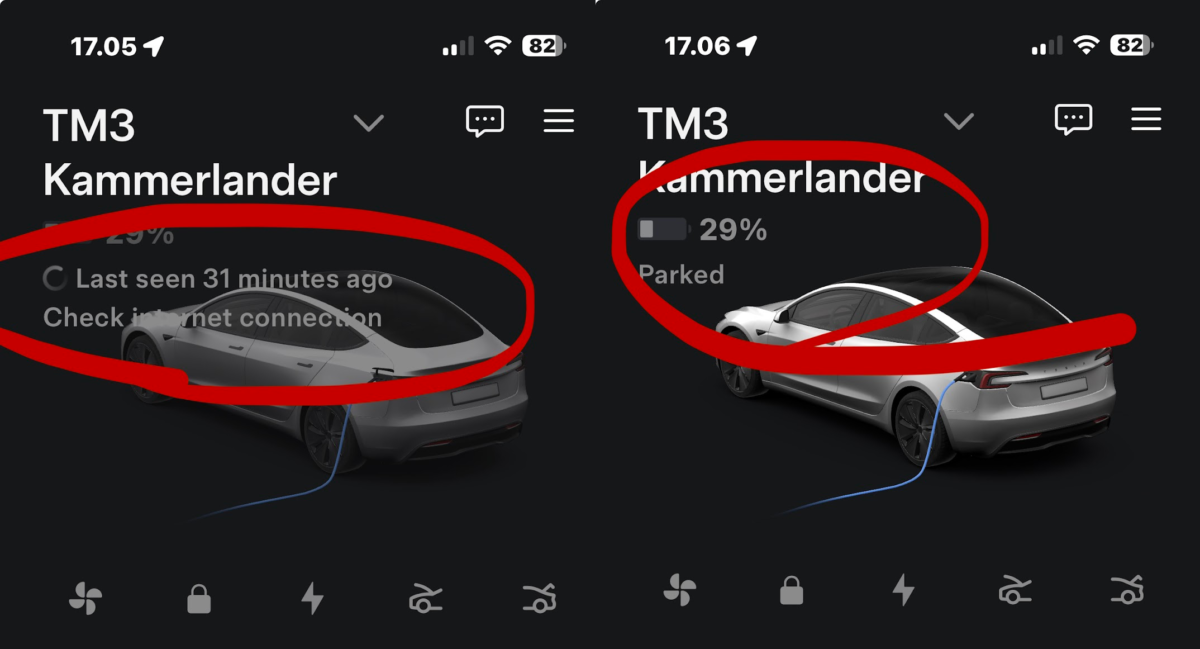
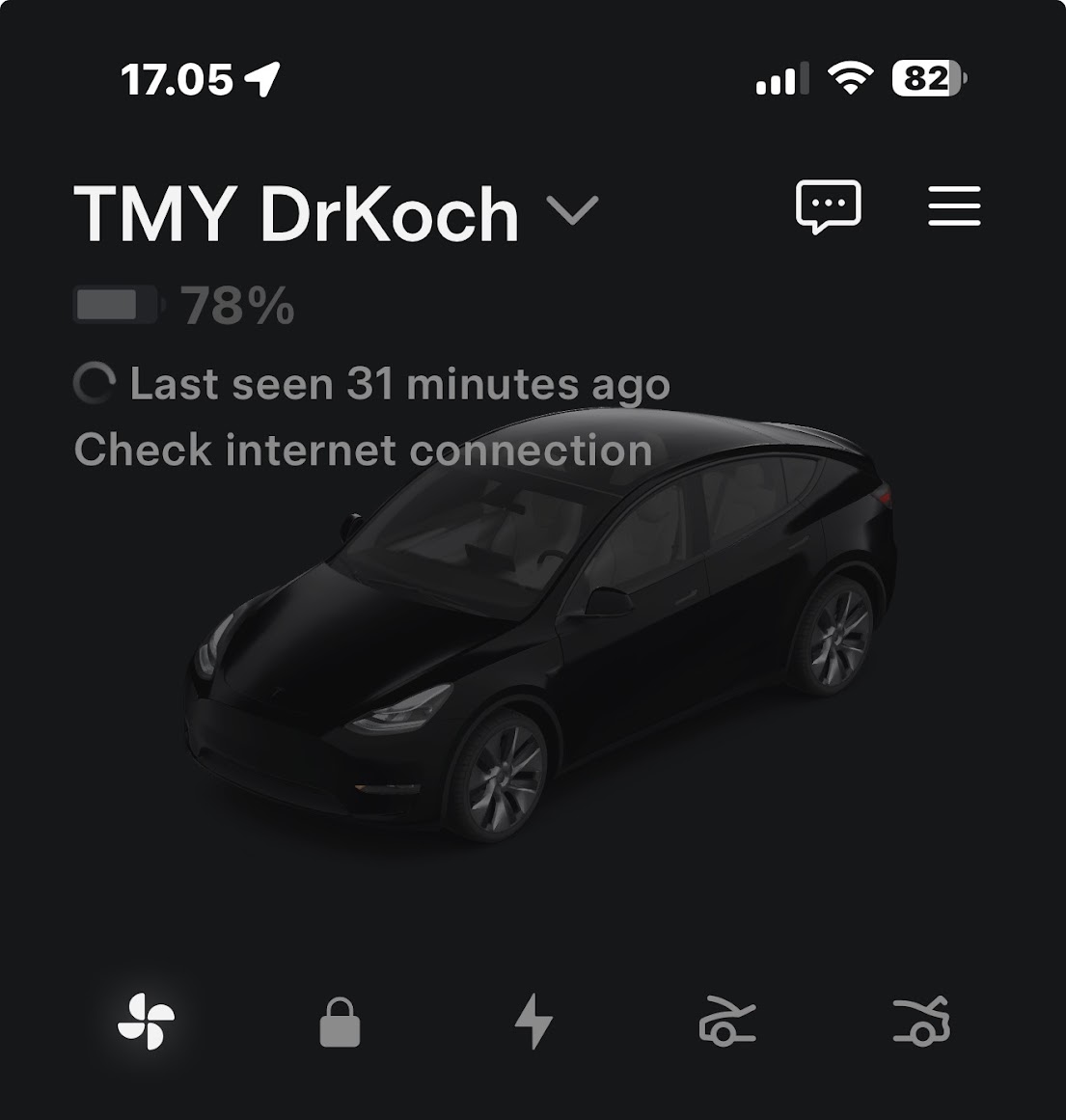
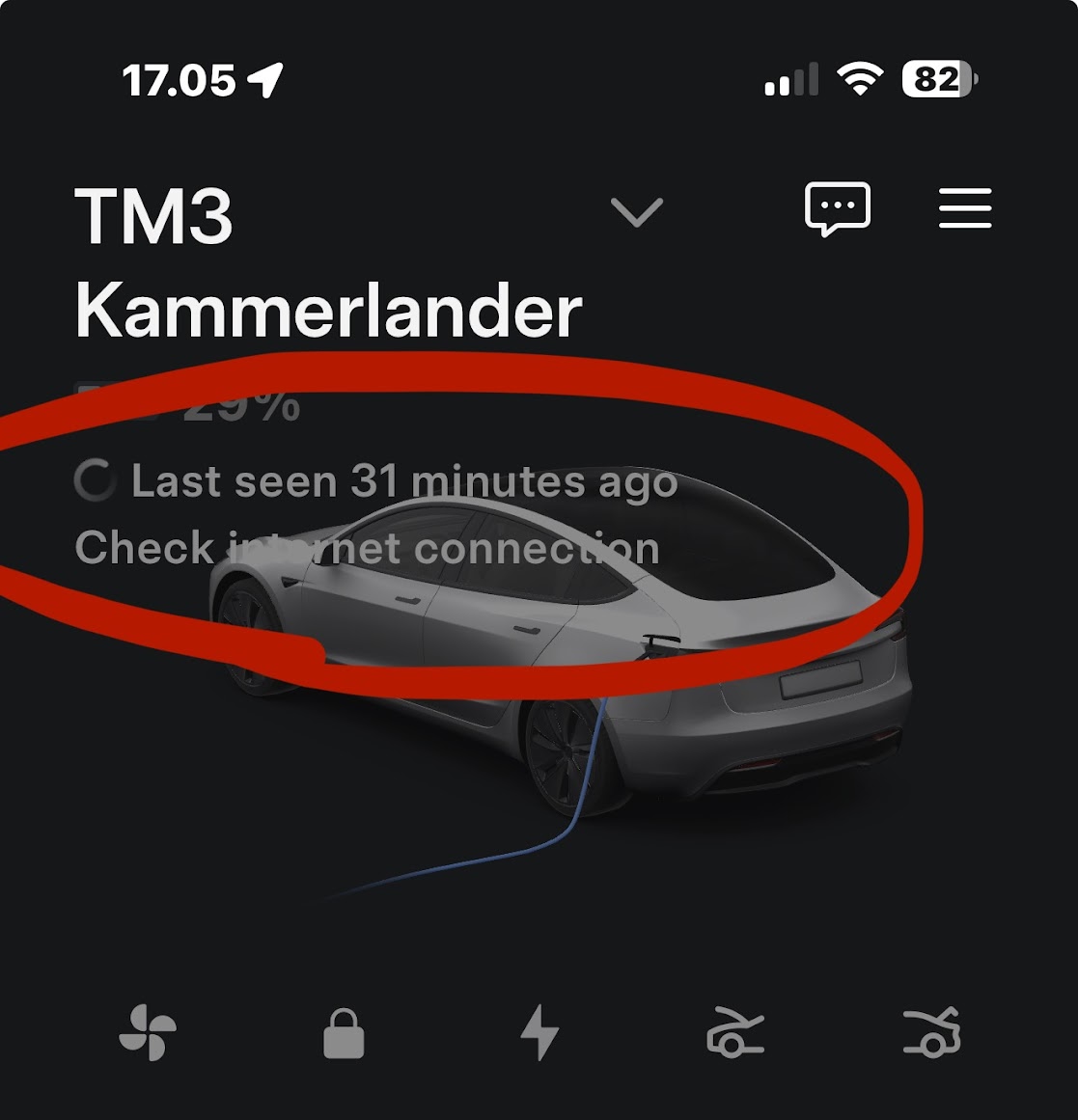
You likely know the scenario: You open the app, but instead of the status overview, you are met with the error message “Check internet connection”. The car suddenly seems distant, and the digital umbilical cord has been cut.
In this post, I will take a closer look at this mysterious error. The solution is rarely found within the car itself, but rather in an unexpected corner: your phone’s security settings.
When the problems do not make sense
What makes this specific error message so confusing are the contradictory signals. When the app refuses to connect, the natural assumption is that the car’s modem has failed or that it has run out of power.
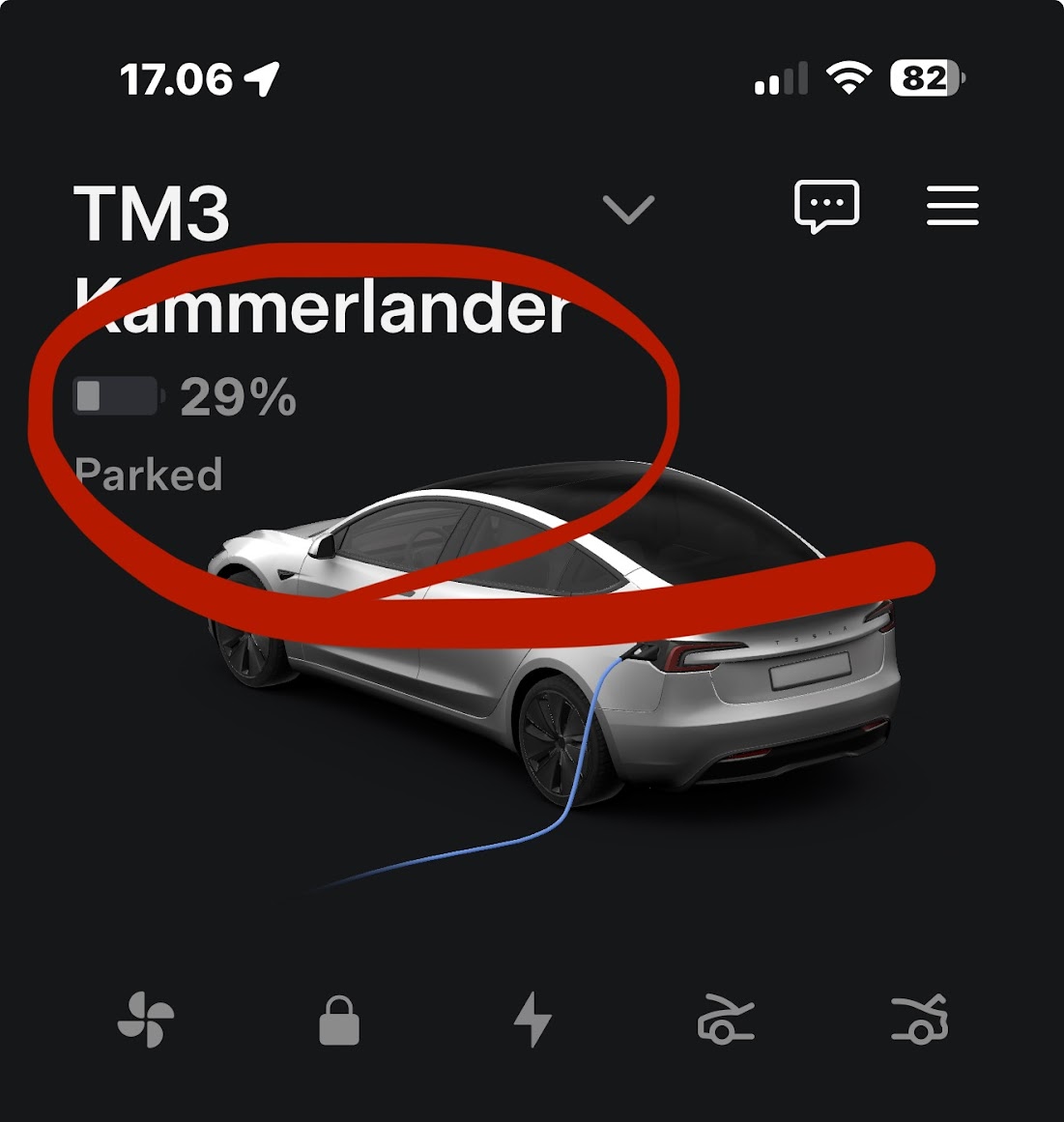
But the paradox arises when you physically approach the car: It unlocks instantly. The mirrors fold out, and your “Phone Key” functionality works flawlessly. This causes confusion, as the car is clearly alive, yet the app stubbornly claims there is no connection.
Many car owners then embark on a fruitless troubleshooting journey, restarting the app, the phone, and even the car—often without success. The image on your screen remains the same: A sleeping car and an app that asks you to check your perfectly working internet.
The problem might be your VPN
After investigating the issue further and delving into various technical forums, it turns out that the culprit is often a function we activate to protect ourselves: the VPN (Virtual Private Network).
Many of us today have a VPN installed on our phones. This could be a work-related security measure, part of a subscription service like Google One, or a conscious effort to ensure privacy on open networks. A VPN works by routing your data traffic through an encrypted tunnel to a remote server, which masks your actual location and IP address.
The problem arises because the Tesla app requires a direct and stable line to Tesla’s servers to “wake up” the car and retrieve data. When your traffic is routed through a VPN, two things can happen:
- Security Blocking: Tesla’s servers may, in some cases, reject the connection from known VPN IP addresses for security reasons, as they cannot verify the source of the request.
- Latency and Routing: The extra “detour” that data takes through the VPN server can create delays or timeout errors, which the app interprets as a missing internet connection.
It is a classic conflict between security and usability. Your phone is doing exactly what it was told—protecting your data—but in the process, it cuts off communication with your car.
Why the key works when the app does not
To fully understand the solution, it is worth looking at the technology beneath the bonnet. The reason you can still open the door and drive, even if the app “fails,” is that the two functions use entirely different communication pathways.
Your “Phone Key” operates via Bluetooth Low Energy (BLE). This is a local, direct radio connection between your phone and the car’s sensors. It does not require the internet, it does not require servers, and it is completely indifferent to whether your traffic is tunnelling through a VPN server in Switzerland. As long as Bluetooth is enabled and you are within range, the car will recognise you.
The app’s remote control functions—such as turning on the heating, honking the horn, opening the frunk, or seeing where the car is parked—take place over the internet, however. Your phone sends a message to a cell tower, which sends it to Tesla’s servers, which then sends the message down to the car’s built-in modem. It is this long, complex chain that is broken by your VPN.
How to solve the problem
Fortunately, the solution is as simple as the problem is frustrating. If you experience your Tesla app freezing at “Connecting” or displaying “Check internet connection” while you have full coverage on your phone, try the following:
- Check Your VPN Status: Go into your settings or open your VPN app (e.g., NordVPN, ExpressVPN, or Google One). Look for a small “VPN” icon at the top of your phone screen.
- Temporarily Disable the VPN: Turn off the VPN connection completely.
- Restart the Tesla App: Fully close the app (swipe it away from the list of open apps) and open it again. This step may not be necessary, as you often reconnect to your Tesla as soon as the VPN connection is broken.
In the vast majority of cases, you will find that the app connects instantly as soon as direct internet access is restored.
If you are dependent on your VPN and do not want to constantly switch it on and off, many modern VPN apps offer a feature called “Split Tunnelling.” Here, you can set the phone to use the VPN for everything except the Tesla app. By whitelisting the Tesla app, it is allowed to communicate directly outside of the encrypted tunnel, while the rest of your web activity remains private.
It is a small adjustment, but it makes the difference between a car that feels “dead” and one that is ready for departure even before you have left the left the house.
Follow on instagram

Comments and questions??
You are always welcome to leave a comment or share similar experiences in the comment section below (go there).
Have a great day. 🍀
Conclusion
As a Tesla owner, it is worth remembering that the car is as much a gadget on wheels as it is a means of transport. When the software malfunctions, it is often external factors—such as a forgotten VPN connection—that are causing the blockage.
The next time your app refuses to communicate with your car, take a deep breath, check your VPN, and know that you will most likely be back on the road in seconds.
Inspiration
Discount when buying a Tesla model S, 3, X and Y
Tesla – TPMS and phone key issues solved – step-by-step solutions (English version)
The Taj Mahal (in Danish and English)
- Information
- Seneste indlæg
- Samarbejde?

Bor i Kolding med min hustru Heidi og vores to skønne børn Emma og William. Jeg elsker ALT der gør hverdagen bedre, lettere eller bare sjovere. Jeg elsker god mad og inspirerende oplevelser, og så har jeg altid haft et blødt punkt for gadgets og lækkert udstyr til hjemmet. Til daglig er jeg medicinmand i det danske hospitalsvæsen.



Thanks pal. You are a life-saver. i have been trying to figure out what my problem was. Some days I had no problem connection to my car, but on other days just the “check internet connection” error. Now, I can connect to my Tesla again.
Thanks
Hi Jim. You’re welcome. It was kind a frustrating no being able to turn on the heating in my car.
Thanks for the feedback.
Best